

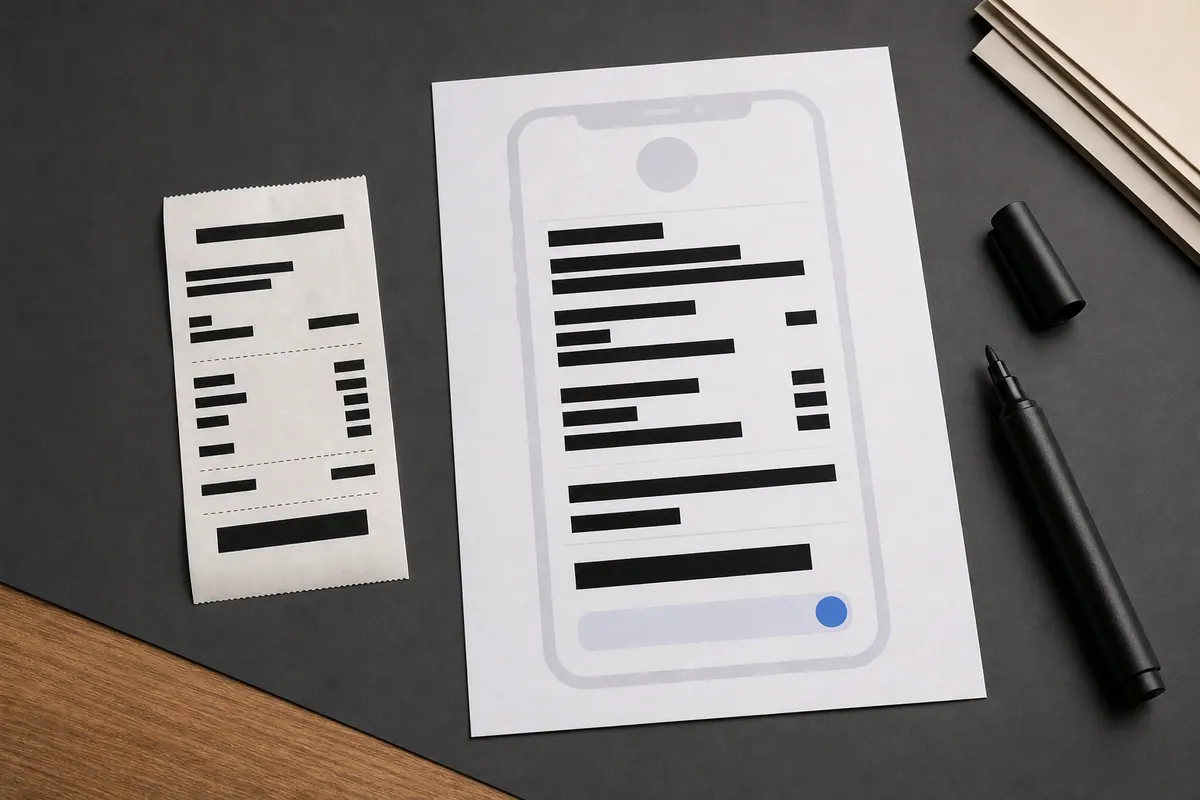
What image redaction actually changes
Image redaction is a content edit. It changes what a recipient can see by covering, replacing, blurring, or pixelating part of the picture. That makes it different from removing EXIF or other metadata, which lives alongside the visible pixels.
For a sharing copy, the goal is simple: the hidden area must not be recoverable from the delivered image. The safest approach is to make a new flattened image after all redaction marks have been applied, then inspect that image at normal and zoomed-in size.
Choose the right treatment for the risk
A redaction style should match the information you are protecting. A light effect that is fine for a background face may be unsuitable for a password, street address, phone number, QR code, or account balance.
- Use a solid black or white cover for names, numbers, passwords, signatures, private messages, and anything that must be completely unreadable.
- Use blur or pixelation only when recognisable shapes are acceptable, such as a distant face or background object that is not the sensitive subject.
- Extend every mark slightly beyond the edge of the information so antialiasing, crops, and tight lettering do not leave a visible sliver.
A cover that only hides the middle of a word, number, or face is not a completed redaction. Review all edges before exporting.
A safe five-step redaction workflow
Work from a duplicate so the source remains available if you need to correct a mark or use the image again for a different purpose. The final review belongs after export, not only in the editor.
- Make a separate copy for sharing and keep the original out of the send folder.
- Scan the full image for faces, names, addresses, plates, notifications, barcodes, reflections, and map pins.
- Apply solid covers to high-risk details and only use softer effects where the remaining shape is acceptable.
- Create a new image, reopen it, and zoom into every covered area.
- Share only the reviewed output, then repeat the process after any further edit or crop.
Details people often miss in screenshots and photos
The intended secret is rarely the only clue. A cropped screenshot can still show an email address in a notification, a customer name in a browser tab, a street number in the background, or a reflection in a shiny surface.
- Notification previews, status bars, browser tabs, and user names
- QR codes, barcodes, reference numbers, order IDs, and payment details
- Face thumbnails, number plates, house numbers, badges, and logos
- Mirrors, windows, glossy screens, and other reflective surfaces
Common questions
Yes. An opaque cover replaces the selected pixels. Blur and pixelation can leave a short word, number pattern, or face recognisable, so use a solid cover for highly sensitive information.
A rendered sharing copy does not carry across the original EXIF block, but redaction and metadata cleanup solve different problems. Redact visible information first, then inspect the final copy if metadata privacy also matters.
No. The redactor creates a separate JPG, PNG, or WebP copy. Keep the original private and distribute only the reviewed output.
No. A screenshot or photograph of a PDF is an image, but it is not a reliable way to redact the source document. Use the document application’s real redaction tools, then review the exported file separately.
Continue with the right workflow
Metadata removal vs redaction
See why hidden file data and visible content need separate checks.
Open resourceImage toolResize an image privately
Create a correctly sized sharing copy after you have finished redacting it.
Open resourceREMOVEMYEXIF processes supported files locally in your browser. Your file does not need to be uploaded to a cleaning service.